How to setup OBS VOD track on channel 6?
When you are beginning streaming, you don't want your VOD to be cut off prematurely. To avoid this, you need to configure OBS VOD Track correctly. Learn how to set it up here.
What is channel 6 VOD track?
You've probably already heard streamers talk about track 6 in OBS. It is a feature that lets you separate certain audio sources, like music or game sound, from the main live stream. This makes it easier to manage your audio and, if needed, record those sounds on a different track for the VOD.
Talking about track 6 has become a misnomer among streamers. In reality, OBS lets you choose any track from 1 to 6.
Channel 6 VOD track setup
First, open OBS, then go to the File > Settings menu and click:
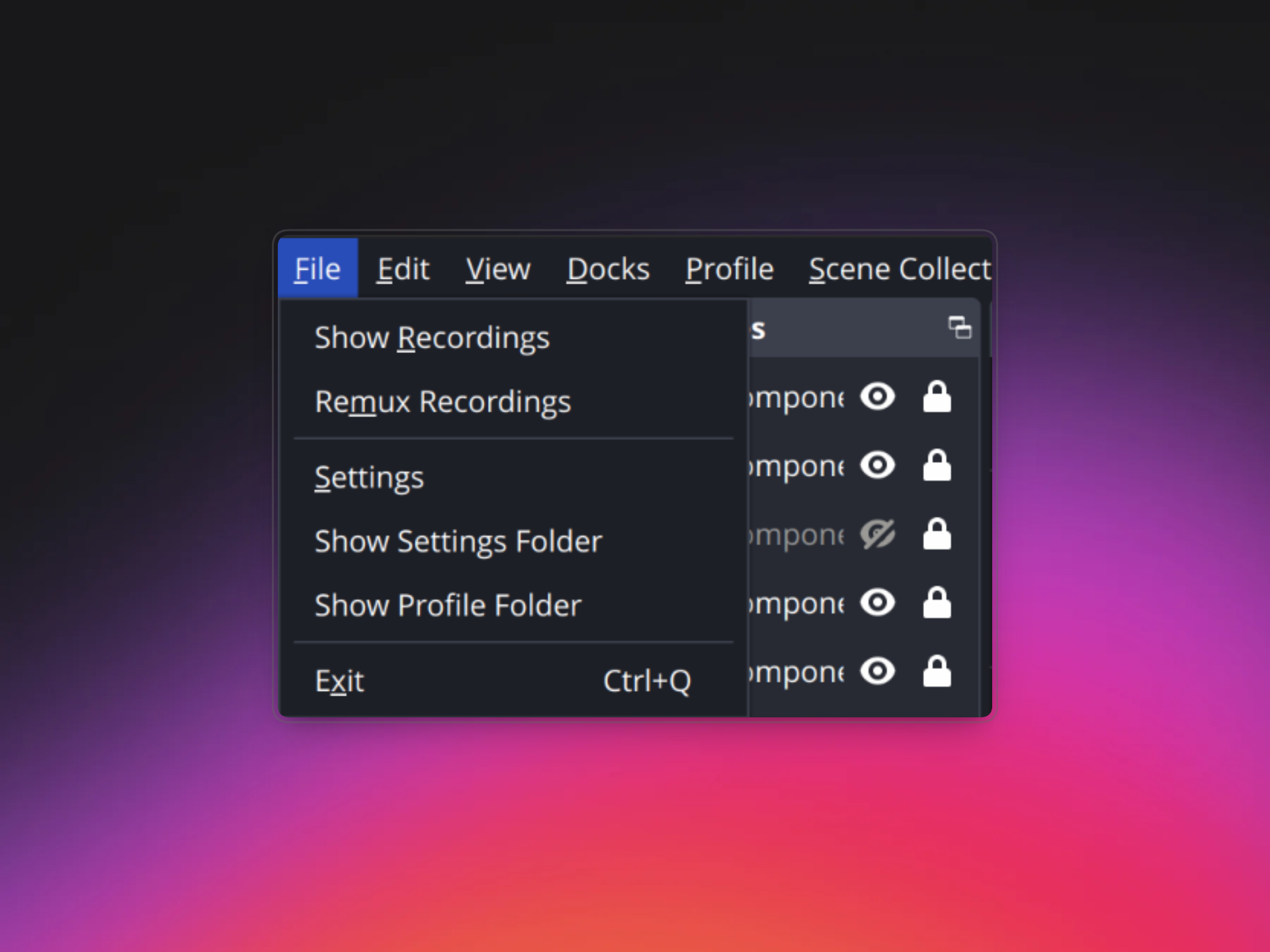
Then from the Output section, be sure to select Output Mode to Advanced from the dropdown menu. In the Streaming tab, enable Twitch VOD Track and set the channel to 6:
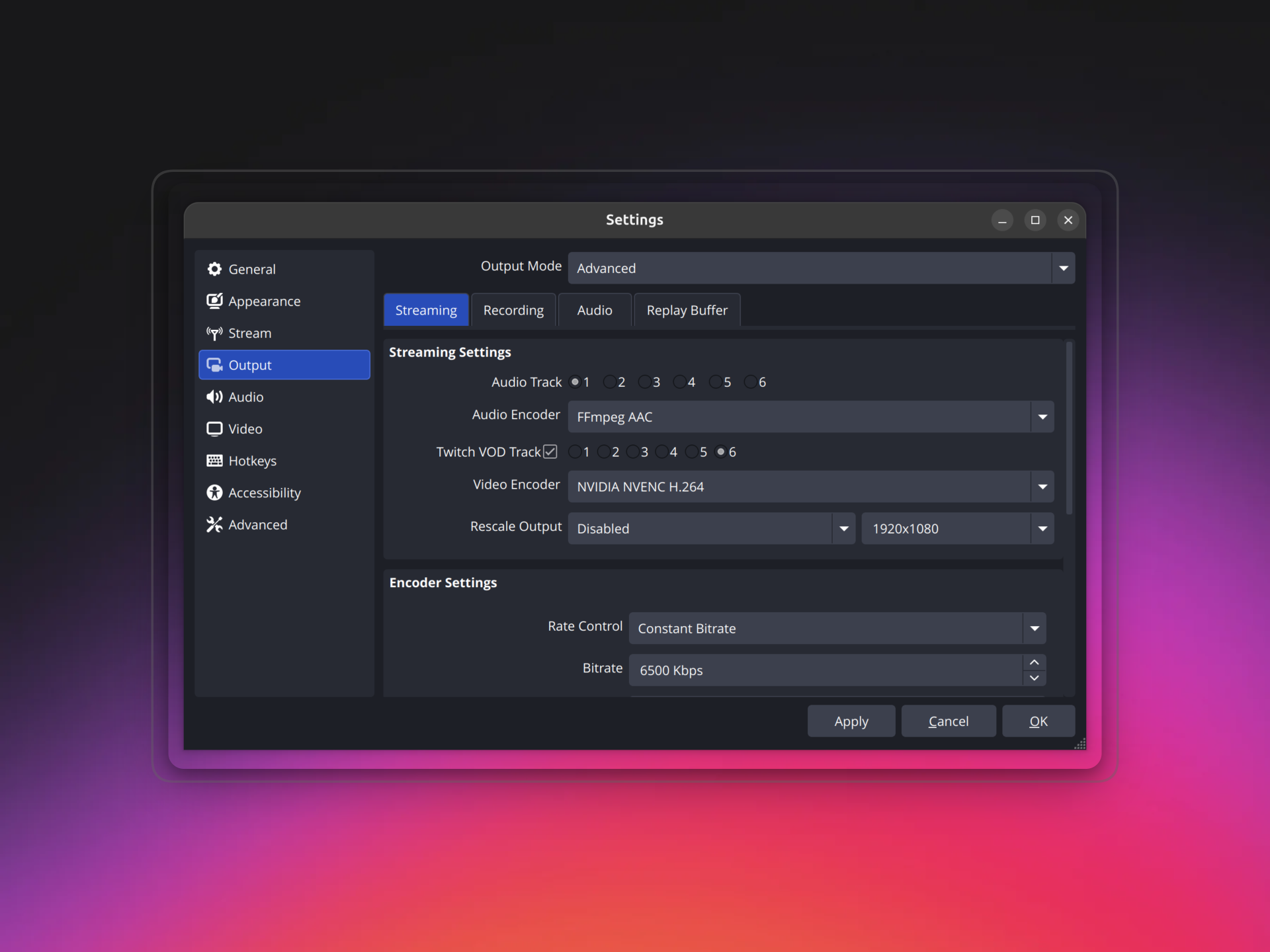
Audio Mixer setup
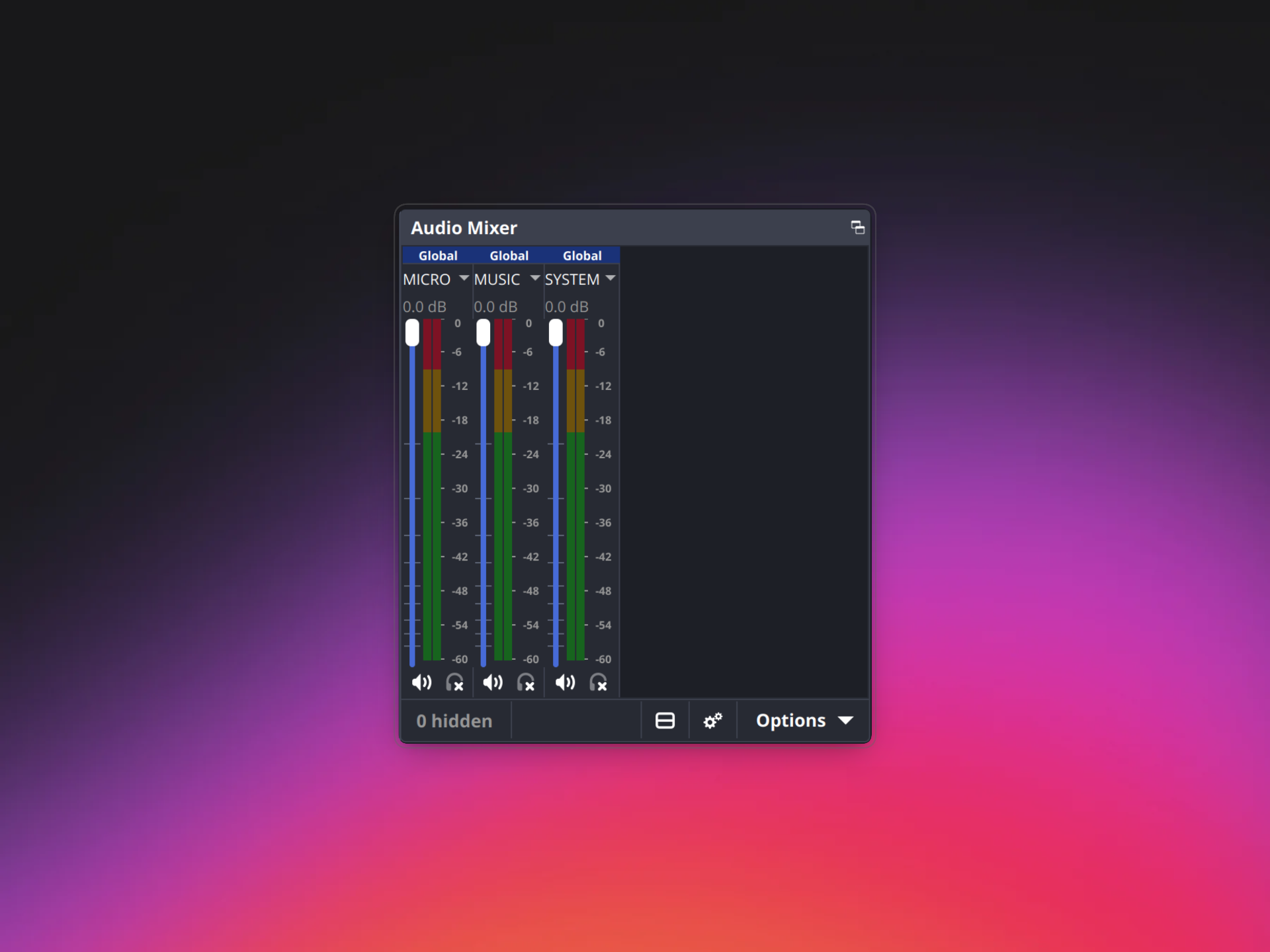
Next, go to the Audio Mixer on the main OBS window and click on the cog icon to open the Audio Mixer settings.
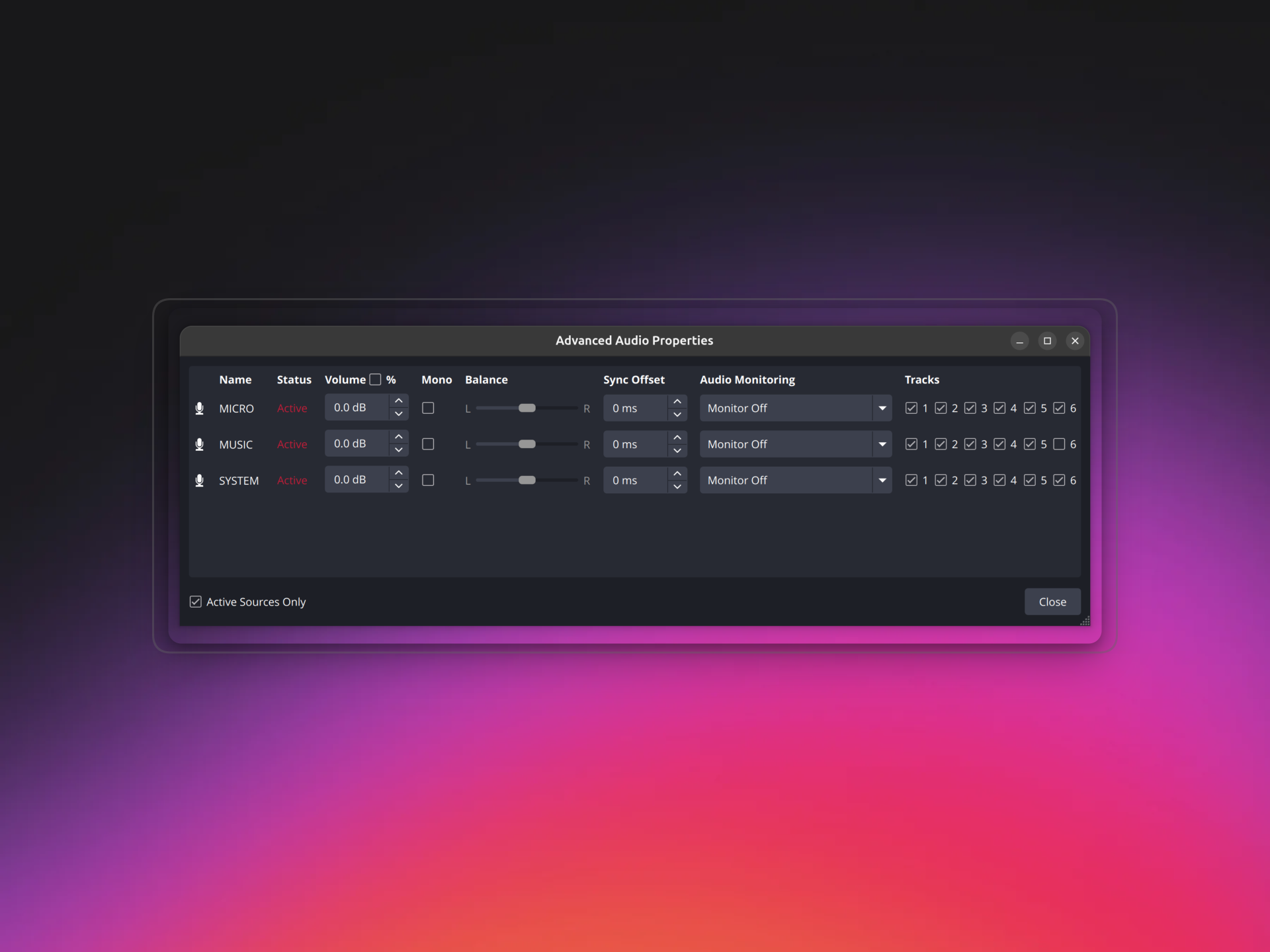
Finally, in the Audio Mixer settings window, unselect the channel 6 track from the audio sources you don't want to head on your Twitch stream VOD. In this example, our music audio source has been excluded from track 6.
How to setup songplz?
Your VOD is ready — now let your music shine on stream.
Download songplz, the free native widget for Windows and Mac that instantly displays the track you are listening to right on your overlay. No developer account, no complex setup — just install it, pick a theme, and go live.
Timeless
The Weeknd & Playboi Carti